

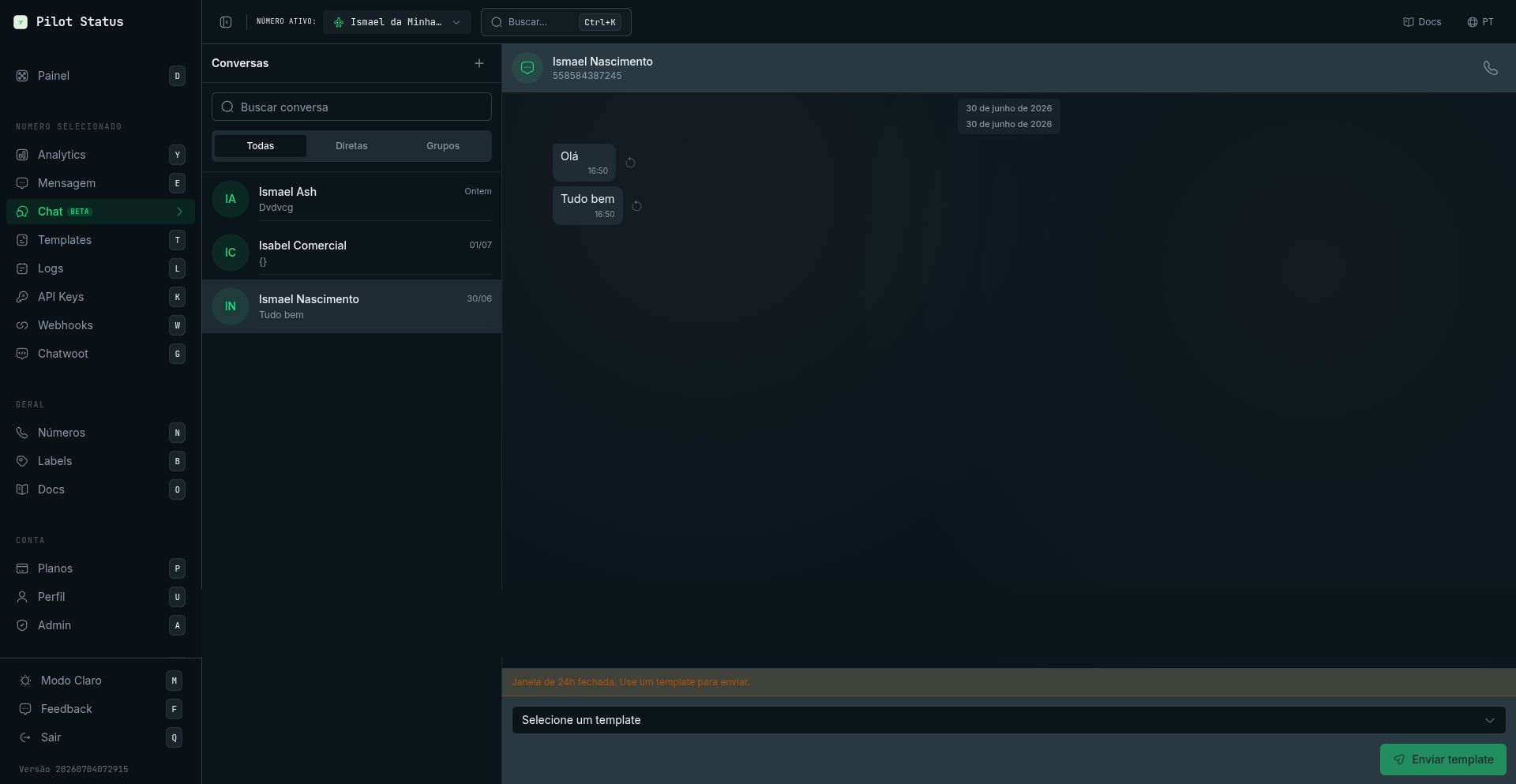
The Chat inbox — conversation list, message thread, and a template composer shown when the 24-hour window is closed.
Live Chat is available on Básico, Premium, and Enterprise plans.
Opening Live Chat
Navigate to Dashboard → Chat in the left sidebar. The left panel lists every active conversation across your connected numbers, sorted by most recent activity. Each row shows the contact’s name or phone number, a preview of the last message, and the time it arrived. Click any conversation to open the full message thread in the main panel.Reading Messages
The message thread shows the complete history of a conversation in chronological order. Each message displays a status icon so you always know its current state:- ✓ — Sent: the message left Pilot Status servers.
- ✓✓ — Delivered: the message arrived on the recipient’s device.
- ✓✓ (blue) — Read: the recipient opened the message.
Sending a Reply
To reply, click the message input box at the bottom of the thread, type your message, and press Enter or click the Send button. Your reply is delivered immediately over the same WhatsApp connection. To send a media file — an image, video, or document — click the attachment icon (paperclip) next to the input box, choose your file, and confirm. Pilot Status uploads the file and delivers it to the contact as a WhatsApp media message.Switching Numbers
If you have more than one number connected to your project, use the number selector at the top of the chat panel to switch between inboxes. Each number maintains its own independent conversation list, so messages never mix across different numbers.What the Chat Panel Offers
The Chat panel brings the essentials of a WhatsApp inbox into your dashboard:- Conversation list — every active conversation for the selected number, sorted by most recent activity, with the contact’s name or phone number, a preview of the last message, and its arrival time.
- Message thread — the full chronological history of the selected conversation, with delivery-status icons on each outgoing message.
- Reply composer — type a message and press Enter or click Send to deliver it over the same WhatsApp connection.
- Media attachment — click the attachment icon (paperclip) to send an image, video, or document as a WhatsApp media message.
- Reply-to — quote an earlier message so your contact sees exactly which message you are responding to.
- Built-in softphone — on calling-capable numbers, place and receive WhatsApp voice calls directly from the Chat panel, without leaving the dashboard.
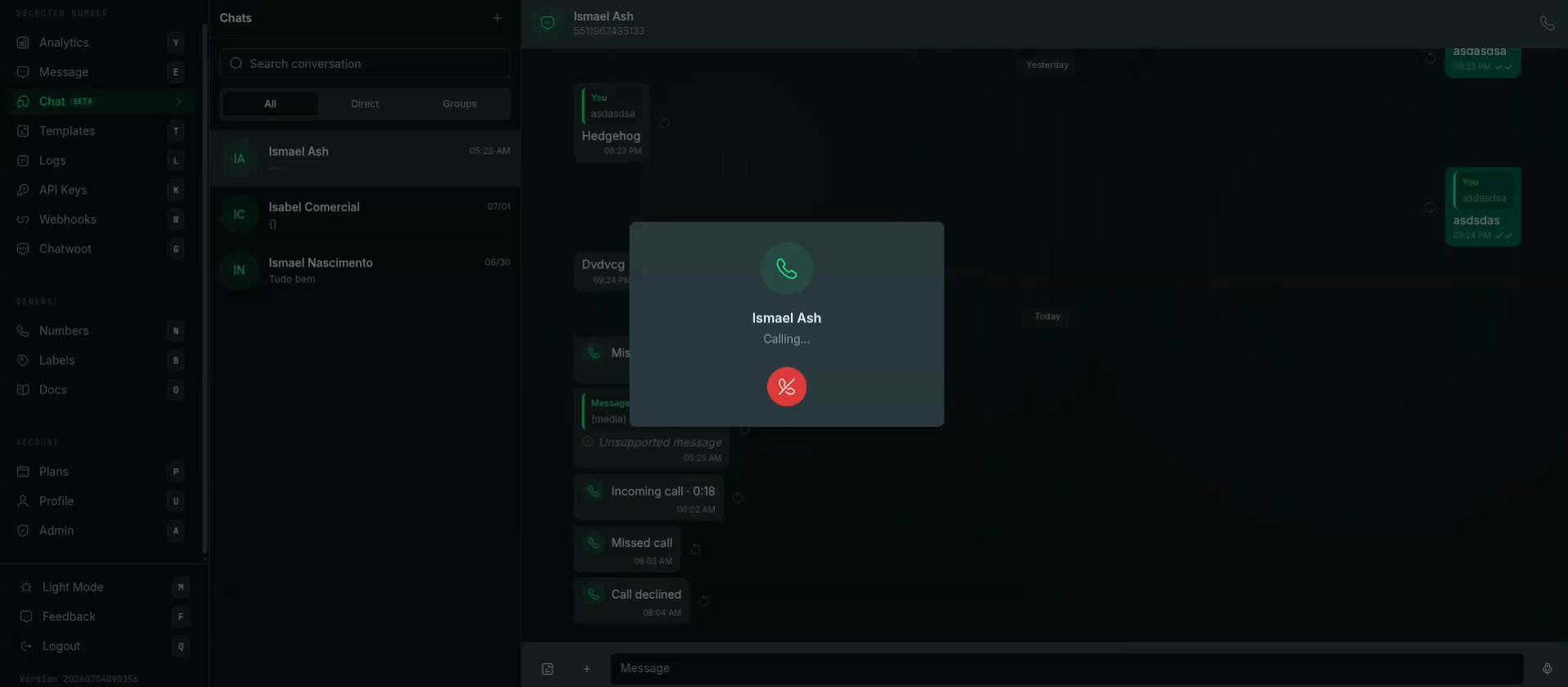
Voice calls in /chat — the built-in softphone rings in place, and call events (incoming, missed, declined) show up as bubbles in the conversation.