

/labels) organizes your contacts and WhatsApp groups into named lists, such as vip or customers. You use a label to load recipients into a bulk send on the Message screen, and your integration can tag contacts automatically by passing labels on POST /v1/messages/send.
Labels belong to the workspace, not to a number: every number of the workspace sees the same labels.
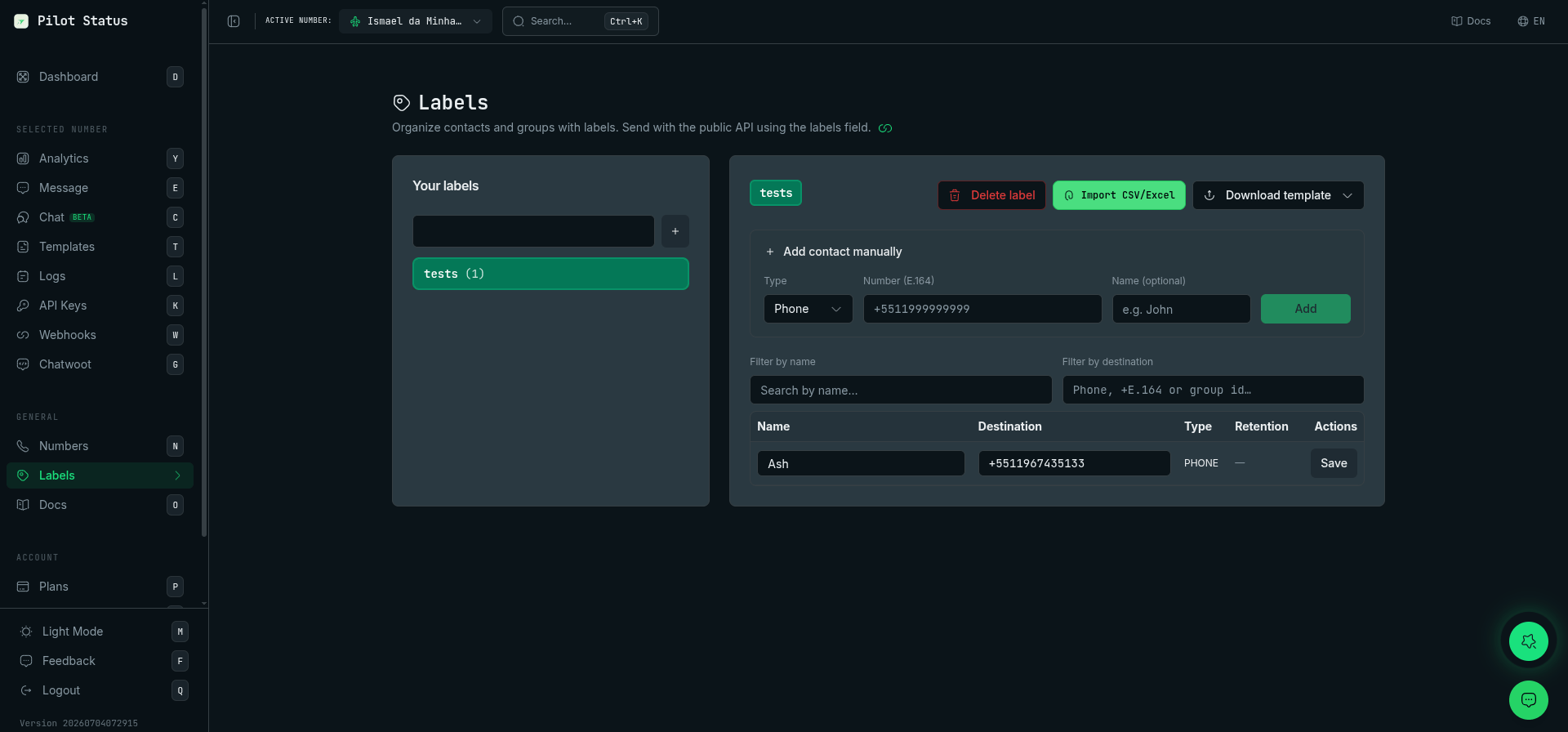
The Labels page — organize contacts and groups into labels, import from CSV/Excel, then pass labels on POST /v1/messages/send.
How to reach it
In the sidebar, click Labels, in the Workspace group (keyboard shortcut:B). The page title is Labels, with the subtitle Organize contacts and groups with labels. Send with the public API using the labels field. The link icon next to it opens this documentation site.
Who can do what
The permissions behind it:
contacts:read opens the screen, contacts:manage creates labels and changes contacts, and contacts:delete deletes a label (it removes every contact link of the label). The retention warning depends on reading the API keys (apikeys:read), which only Owner and Admin have. See Roles and permissions.
There is no plan gate on this screen.
What you see
Data retention (PII) warning
When at least one of your API keys has a retention of 0 days, a warning titled Data retention (PII) appears at the top: Some API key has retention 0: numbers may be erased automatically per retention policy. Contacts from the public API show the key retention. See Data retention & PII modes.Your labels
The left card, Your labels, lists every label with its contact count, for examplevip (12). Click a label to select it; the first label is selected when the page opens. Each label gets a color automatically, worked out from its name; there is no color to pick. Labels are listed in alphabetical order.
To create a label, type its name in the field at the top of the card and press Enter or click +. Names are snake_case: lowercase letters, numbers and _ (the field converts what you type). Creating a label whose name already exists selects the existing one instead of making a copy. The screen says Label created.
The selected label
The right card shows the selected label’s name and its actions. With no label, it says Create or select a label.- Delete label — Owner and Admin only. Opens the Delete label? dialog: This cannot be undone. All contacts linked to this label will be removed., with the number of contacts, and Cancel or Delete. The contacts are unlinked from this label only; the same destinations stay in other labels.
- Import CSV/Excel — adds the contacts of a
.xlsx,.xlsor.csvfile to the selected label. See Import contacts. - Download template — downloads an import model (Excel (.xlsx) or CSV (.csv)) with the columns
name,destinationNumberandgroupIdand two example rows.
Add contact manually
Under Add contact manually:- Pick the Type: Phone or Group.
- Type the Number (E.164), such as
+5511999999999, or the Group id, which must end with@g.us. - Optionally type the Name (optional).
- Click Add.
@g.us shows Group id must end with @g.us. On success, the screen says Contact added. If you leave the name empty on a phone contact, Pilot Status tries to fill it with the name the number uses on WhatsApp, when one is available.
Contact list
The contacts of the selected label. Narrow the list with Filter by name and Filter by destination (a phone in any format, E.164 or a group id); Clear filters resets both. An empty label says No contacts yet. Use the form above, import CSV/Excel, or send messages with labels via the API.
The Retention column is how you tell which contacts came from the API: they are the ones with a value there. The API key itself is never shown.
Edit a contact
Change the name or destination in the row, then click Save on that row. Edited rows turn amber with Unsaved, and a banner reminds you: There are unsaved changes. Click Save on each row to persist. Changing a destination to one that the label already has fails with Destination already exists in this label. A phone needs at least 8 digits, or you get Invalid number. A new group id that does not end in@g.us is not applied: after Save (the screen says Saved), the row keeps its previous group id.
Copy a contact to another label
In Copy to…, search and pick another label. The contact is linked to that label too (Contact copied). If the destination is already there, it is not duplicated; an empty name on the target is filled in. A copied contact that came from the API keeps its Retention in the new label.The screen has no button to remove a single contact from a label, and no export. To drop one contact, delete and recreate the label, or import the list you want into a new label.
Import contacts
Select a label, click Import CSV/Excel and pick the file. The import:- reads the phone from a column named
destinationNumber,number,numero,telefoneorphone, and the name fromname; - treats a row as a group when the
groupIdcolumn (orgroup_id,group,grupo) ends with@g.us; - skips rows whose phone is not a valid E.164 number;
- updates the name of a destination already in the label when the label has it with an empty name;
- for a phone row with no name, tries to fill the name with the one the number uses on WhatsApp.