

n), at the path /numbers.
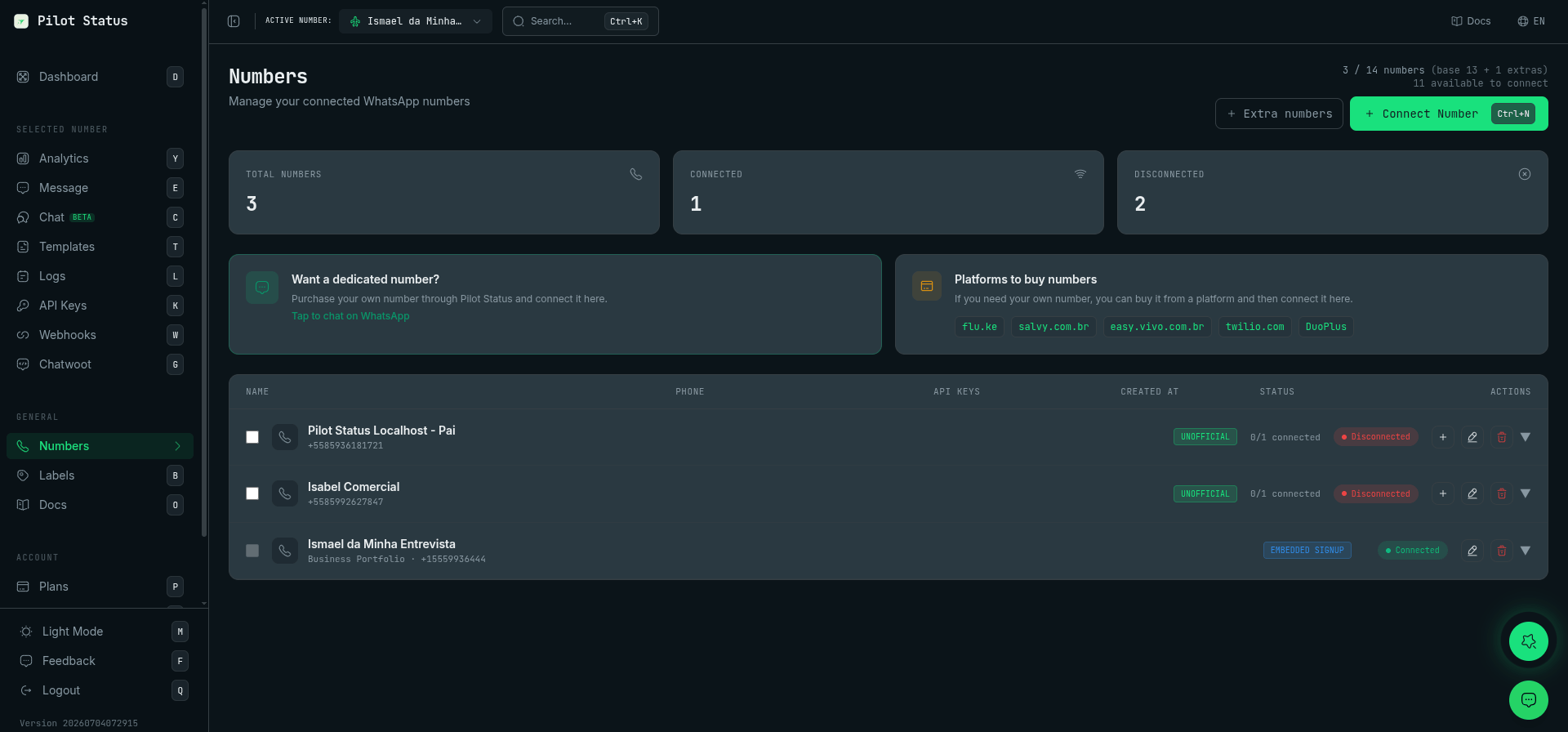
The Numbers screen — one row per number, with status, API keys and actions.
Who can do what
Every role can open the screen and see the numbers (numbers:read is granted to everyone, Analyst included). What a role can change is narrower — buttons a role cannot use are not shown at all.
An Agent or Analyst limited to specific numbers sees only those numbers — see Members.
What you see
Header. The title Numbers — “Manage your connected WhatsApp numbers” — and a usage line that depends on the plan:- fixed plans:
used / limit numbers, with(base N + M extras)when you have extra numbers, and how many are available to connect; - On Demand: also the price per number/month;
- Pay As You Go:
N billable number(s)and the price per number/month. This is a billing count — every number on the account, connected or not (unfinished pairings excluded).
Status badges on a row
When Meta reports a policy violation, the expanded row shows Reason given by Meta with the violation, restrictions and the date.
The expanded row
Unofficial numbers list each connection (instance) with its state and, when connected, two buttons:- Groups — opens WhatsApp groups: every group with its ID and a Copy group ID button, filterable by name. This is how you get the
groupIdfor sending to groups. - Newsletters — opens WhatsApp newsletters: channels and their IDs (Copy newsletter ID). “Cached list (up to 1h).” See Channels (newsletters).
- a Webhook Configured / Webhook Pending badge, the webhook URL: with a copy button, and Verify Token: — the Owner gets a copy button; everyone else reads “Only the workspace owner can view it”. This block appears for numbers connected by credentials (Cloud API), because those are the ones where you paste the webhook into your own Meta app.
- Phone Number, Phone ID, WABA ID and Business Account ID, each with a copy button.
- Sync history (Coexistence numbers only) — “Imports this number’s earlier messages.”
- a WhatsApp-style preview of the business profile.
-
Meta details — a snapshot read from Meta (fetched automatically when you expand a row that has none yet; Updated: shows when it was taken). It holds:
- badges for Quality (green, yellow or red), Tier — the number’s own messaging limit,
—when Meta gives the number none — plus a Portfolio tier when the Business Portfolio’s limit differs (“Business Portfolio messaging limit, not this number’s. Meta requires the NUMBER’s own limit to be 2K/24h before calling can be enabled.”), Calling (Enabled/Disabled), throughput, the Meta status (CONNECTED…), platform and account mode; - Number: verification status, Name: — the display-name status at Meta — and New name: when a name change is under review. Only
APPROVEDis green;AVAILABLE_WITHOUT_REVIEW,PENDING_REVIEWandPENDINGare amber (the name is not approved yet). Official and PIN badges appear when they apply; - Onboarded at, Business profile (About, Description, Email, Address, Vertical, Websites) and WhatsApp Business Account (WABA) (Name, Currency, Timezone, Country, Account review, Business verification, Ownership, Template namespace, Owner business);
- a red Unable to send or amber Degraded sending strip with the reason, or Not registered on the Cloud API, when that is the number’s health;
- “Some data could not be loaded (token missing permission or expired).” when part of the snapshot failed.
- badges for Quality (green, yellow or red), Tier — the number’s own messaging limit,
Coexistence numbers cannot enable calling or be registered on the Cloud API — Meta refuses it while the number still lives in the WhatsApp Business app. Messaging keeps working. The panel says so in the row, in amber: “This number is in coexistence with the WhatsApp Business app (confirmed by Meta)…”, or “This number is likely in coexistence…” when Meta has not confirmed it.
Connecting a number
Click Connect Number (shortcutN). The first dialog, Which API do you want to use?, offers four cards — one may carry a Recommended tag:
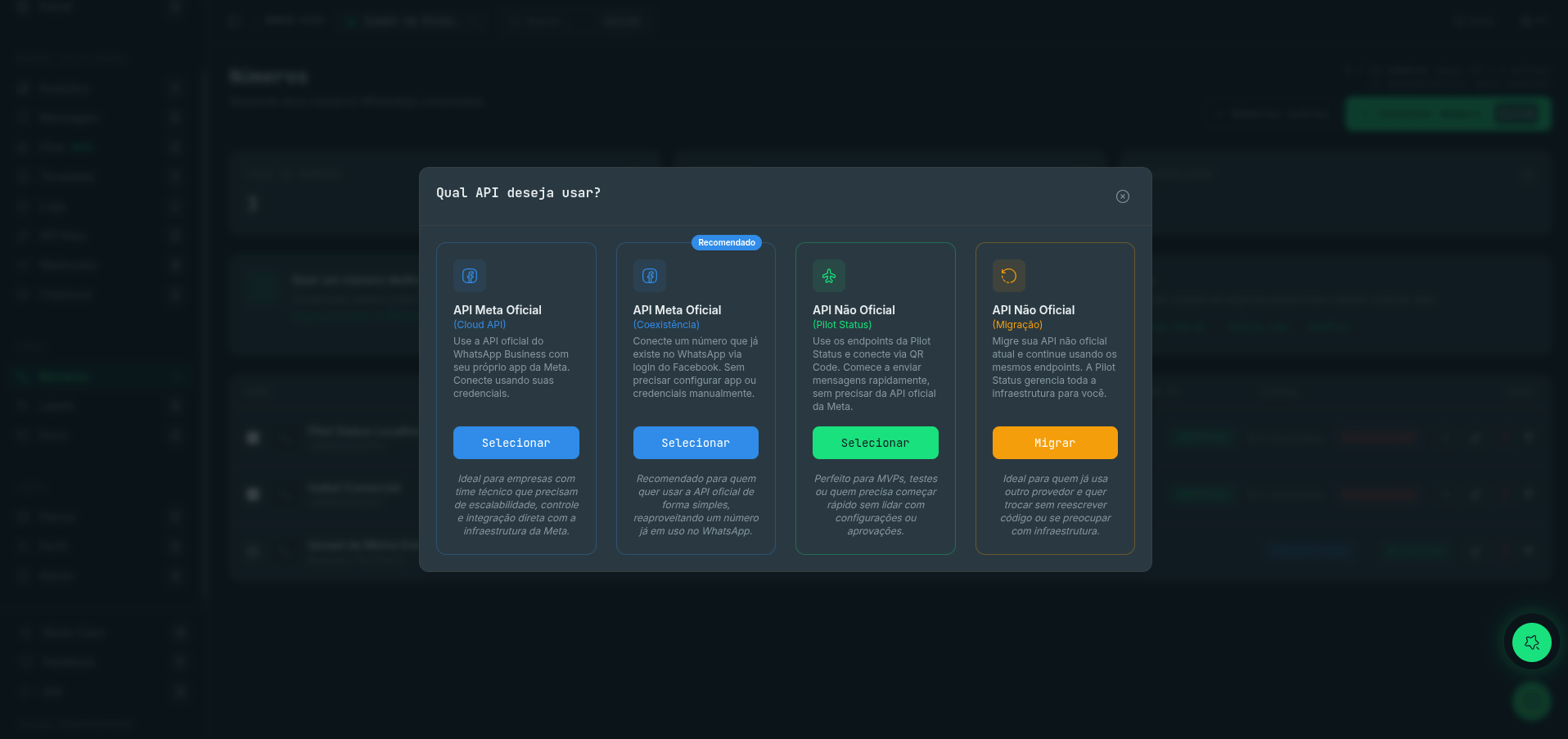
Which API do you want to use? — the four connection cards.
If your plan has no free slot, Number limit reached opens instead: it shows how many numbers you use and offers Upgrade (to Plans, for roles that can see billing) and Buy extra number / Add extra number (Owner).
On Pay As You Go, every connect form shows the estimated monthly cost and “This number will be charged (Pay As You Go) after connecting”, prorated to the rest of the cycle.
Unofficial API — QR code or remote link
- Pairing mode: Direct (QR Code) — “Scan the QR Code on your phone to connect” — or Remote (Link) — “Generate a link to send to your customer to connect remotely”.
- Connect number form: Name (e.g. Main Support), Number, and the checkbox Bring this device’s previous conversations — “Imports up to 30 days of conversation at the moment the number connects. On by default. ⚠️ The choice is now: WhatsApp hands that history over once, right after the connection, and there is no way to ask for it again.” Then Generate QR Code.
- Direct: the QR dialog shows the QR code, a countdown (“Expires in N s”) and the letter Pairing code with Copy. In WhatsApp: Menu → Linked devices → Link a device, then scan or type the code. Buttons: Generate new QR Code, Try fetching QR again, Check connection, Remove number.
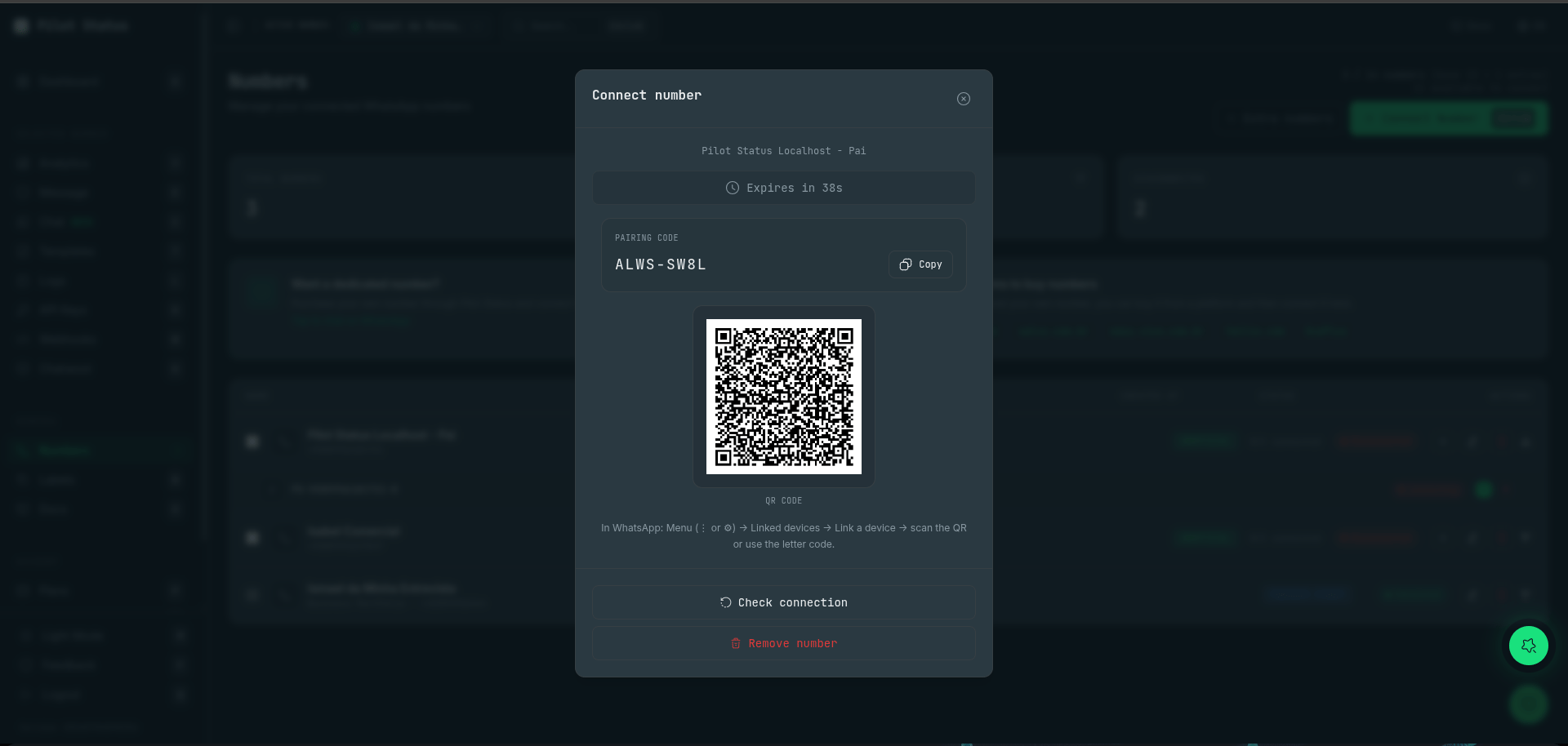
Connect number — QR code and letter pairing code.
- Remote: the Pairing Link dialog — “Remote pairing session created!” — shows the masked number and the link with Copy link and Send via WhatsApp. When your customer opens it and scans the QR code, the
number.connectedwebhook fires. What the customer sees is described in Connect page.
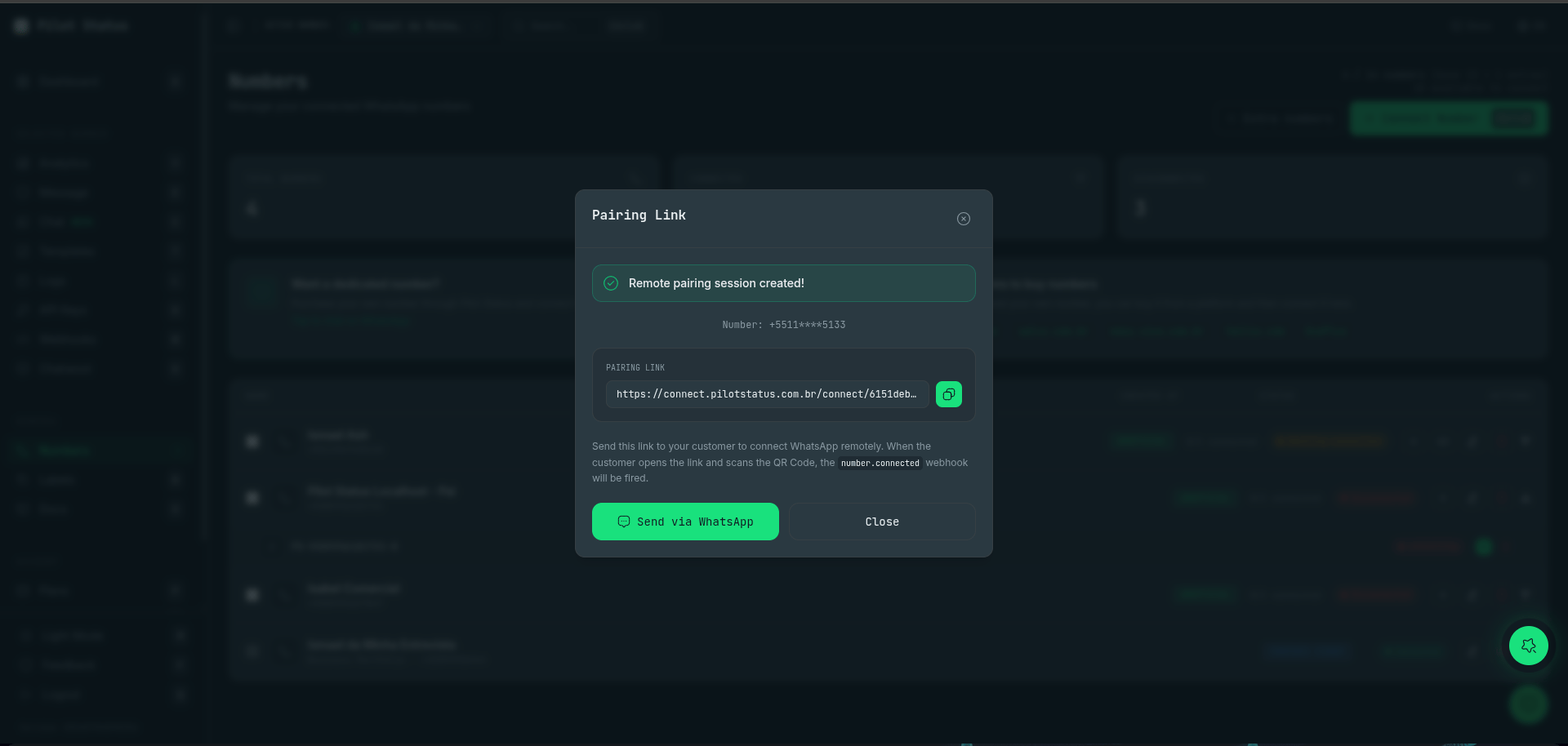
The Pairing Link dialog for remote pairing.
Official Meta API (Cloud API) — by credentials
- How do you want to connect? — Connect now (“Set up this number right now”) or Remote (Link) (send your customer a link). The link opens the credentials form of the Connect page, which adds a checkbox to route the WABA’s webhooks to Pilot Status automatically.
- Connect now opens the form with Name, Phone Number ID, WABA ID, System Token, App Secret and App ID (all required; the phone number itself is read from Meta with the Phone Number ID and the System Token — if that fails: “Could not resolve the number from the Phone Number ID. Check the ID and System Token.”). Click Connect Meta. This dashboard form has no routing checkbox: you always configure the webhook yourself.
-
Meta Number Created! — “Configure the webhook in Meta Business Dashboard:” — shows two values with copy buttons:
- Callback URL — the URL to paste in your Meta app;
- Verify Token — the token Meta sends back to verify that URL.
messages,message_template_status_update. Click Done.
Official Meta API (Coexistence) — Connect with Facebook
Choose Connect now or Remote (Link). Connect now shows Connect with Facebook: Meta’s Embedded Signup opens in a Facebook window, you pick or create the WABA and the number, and the number appears connected (“Number connected!”). No credentials and no webhook to paste — Pilot Status subscribes the webhook for you. If the Facebook window closed before the dashboard noticed, the row stays Awaiting connection with the button I already connected, sync — “If you already finished connecting in the Facebook window, sync to activate the number here.”Migration from another provider
Migrate instance — “Enter the instance name and token you used in your previous provider.” Fields: Source provider (Evolution GO or Evolution V2), Name, the phone number, Old instance name, Instance ID (UUID) and Old instance token. Click Migrate and connect; a QR code follows. The dialog reminds you: “After creation, point your base URL tohttps://pilotstatus.com.br/api/layer/<provider>/ and your code will keep working.” — see the API Layer.
Other actions on a row
- Add connection (unofficial) — a second device/connection for the same number; same QR dialog.
- Edit name — dialog Edit number name with Name. For migrated numbers it also shows Instance Name, Instance ID (UUID) and Instance Token (the old provider’s values used by the API Layer).
- Reconnect — new QR for an unofficial connection; Reconnect with Meta for a Meta number that lost access.
- Resume sending (unofficial numbers) — after a disconnection or shadowban paused the queue; the waiting messages go out right after. Toast: “Sending resumed. Start slowly and watch for failures.”
- Two-step verification PIN — opens when Register on the Cloud API fails because the number already has a PIN you set. Field 6-digit PIN (“not the code received by SMS”), button Register with this PIN. Several wrong PINs make Meta block attempts for a while. Don’t know it? Turn off two-step verification in WhatsApp Manager and register again. The PIN is sent once and not stored.
Extra numbers (Owner)
- Extra numbers (fixed paid plans) — a stepper for recurring extra numbers: “Increasing charges a prorated amount immediately; reducing is not refunded.” Shows the Total limit; Save.
- Add extra number (Free and On Demand) — a Quantity stepper, then the price per number, Charged now (prorated), Then, monthly, and How to charge: Credits (wallet) (with balance; a saved card covers the rest) or Card; without either you are sent to checkout. Confirm purchase. If you already have paid empty slots, it warns that the purchase opens another slot.
- Pay now — on a number with Payment pending: charges the wallet or saved card right away and releases sending.
Deleting, restoring and purging
Delete number
The trash icon on a row (Owner and Admin) opens Delete Number — “Are you sure you want to delete the number <name> (<phone>)” — or, for a Meta number, Remove Meta Number. In both you must type the line’s phone number (“Type this line’s phone number to confirm.”); the button (Delete / Confirm Removal) stays disabled until the digits match, and the server checks the typed number again. When you have paid extra numbers (fixed plans and On Demand), the dialog adds: “This does not reduce your paid capacity: the slot stays free to reconnect another number this cycle. To lower capacity, use the General tab in Plans — the new value only applies next cycle.” What confirming does, for every kind of number:- every connection of the number is logged out and removed right away (an unofficial device is unlinked from the phone);
- the number leaves the list and the billable count, its API keys stop working on the next request, and an unpaid extra-number charge on it is dropped;
number.removedis sent to the webhooks subscribed to that number;- the number goes to Recently deleted, with its history, templates, webhooks and API keys kept for 30 days.
Remove Meta Number
The Meta dialog says what the removal really does: “The number goes to Recently deleted and can be restored for 30 days. Nothing changes at Meta now: the number stays registered on WhatsApp Business. Only on permanent deletion (manual, or automatic after the 30 days), and only for numbers connected through Facebook, is the app’s access revoked, the WABA webhook subscription cancelled and the number deregistered. Confirm removal of <name> (<phone>)”. In detail: while the number sits in Recently deleted, nothing is changed at Meta, which is what lets Restore bring it back. The Meta steps run only when the number is deleted for good — Delete permanently, or automatically after the 30 days — and only for a number connected with Facebook (Embedded Signup): Pilot Status deregisters the number from the Cloud API and, when no other live number uses the same WABA, also unsubscribes the WABA from its webhooks and revokes the app’s access. These calls are best-effort. For a number connected with your own credentials (Cloud API), nothing is changed at Meta at any point: the webhook and the registration stay in your Meta app until you remove them there. On a narrow (phone-width) screen, the row’s trash icon is shown for every number — Meta numbers and numbers with more than one connection included — and opens the same dialog.Recently deleted
Owner and Admin see the Recently deleted block at the bottom of the screen — “Recoverable for 30 days. After that the deletion is permanent — and the number becomes connectable by any account.” Each entry shows the days left (purge imminent on the last day) and:- Restore — asks first. Restore number? shows the number, says it comes back DISCONNECTED and what restoring may cost: at the number limit, “Your account is at its number limit (N of N). If this number had been connected before, restoring it is charged now as an extra number — from credits first, then the card” (with the per-number monthly price on On Demand and Pay As You Go); with room, that it takes one of the free slots with no extra charge; if the plan could not be loaded, that it may be charged. Restore confirms, Cancel does nothing. Restoring brings the number back (with its history, templates, webhooks and API keys) disconnected: you reconnect it from scratch (new QR or Meta re-provisioning), and
number.restoredis sent. If the workspace is already at its number limit, restoring a number that had connected before buys an extra number for it, charged to the wallet or saved card. Refusals: “The 30-day window has expired: this number can no longer be restored.”, “This number has already been reconnected elsewhere and cannot be restored.”, “Restoring this number goes past your plan’s limit, and the extra number could not be charged. Add credits or a card and try again.” and “The extra number’s payment did not go through, and the number was NOT restored. Check your statement before trying again.” - Delete permanently (Owner) — dialog Delete permanently: “There is no undo. Confirm the permanent deletion of <number>”. It first counts what will go — “This deletes the number and its whole history forever: N conversations and N messages.” — then, under Also deleted:, send log entries, call records, message templates, webhooks set up only for this number, API keys of this number, the Chatwoot integration, and “the number registration on the official Meta API” (listed only when the Meta deregistration will actually run). It suggests the alternatives (Restore, or simply leave it to be deleted automatically). If the count fails, it says to assume everything will be deleted. You type the number to confirm.
Remove connection
Remove connection (the trash icon on one connection of an unofficial number) — “This logs the device out and deletes this connection of <connection>” — with the note “Unlike deleting the number: the connection does NOT go to the trash and cannot be restored. The number keeps existing and can be connected again from scratch.” Confirmed by typing the connection’s phone number.Do it via API / MCP
Lifecycle events (
number.connected, number.removed, number.restored…) are described in Webhook events.