

How to get there
- Sidebar: Plans (keyboard shortcut:
p), or Plans in the command palette (Ctrl+K/⌘K). - Path:
/plans. Each tab has its own link with?tab=:/plans?tab=general,plans,card,wallet,finance,history. A billing notice e-mail can open this screen directly. - The screen title is Plans & Packages, with the subtitle Manage your plan, packages and billing history.
Who sees what
The screen is for Owner and Admin. Agent and Analyst do not see it: there is no Plans item in their sidebar or command palette, and opening/plans by link shows Your role does not include this area instead.
Moving money — buying or changing a plan, paying, saving or removing a card, topping up the wallet, cancelling, changing paid capacity, editing billing details — is Owner only. A hidden tab stays hidden even when opened by link (
/plans?tab=card falls back to General).
On General, an Admin sees the notices, the cards, the billing cycle and the subscription summary, but none of the Owner-only buttons: no Manage subscription on Stripe, no Schedule reduction / Cancel reduction, and no Pay invoice or Add credits in the notices. Where the notice would have a payment button, an Admin reads Only the workspace owner can pay the invoice. or Only the workspace owner can add credits. instead. Ask the Owner to do these.
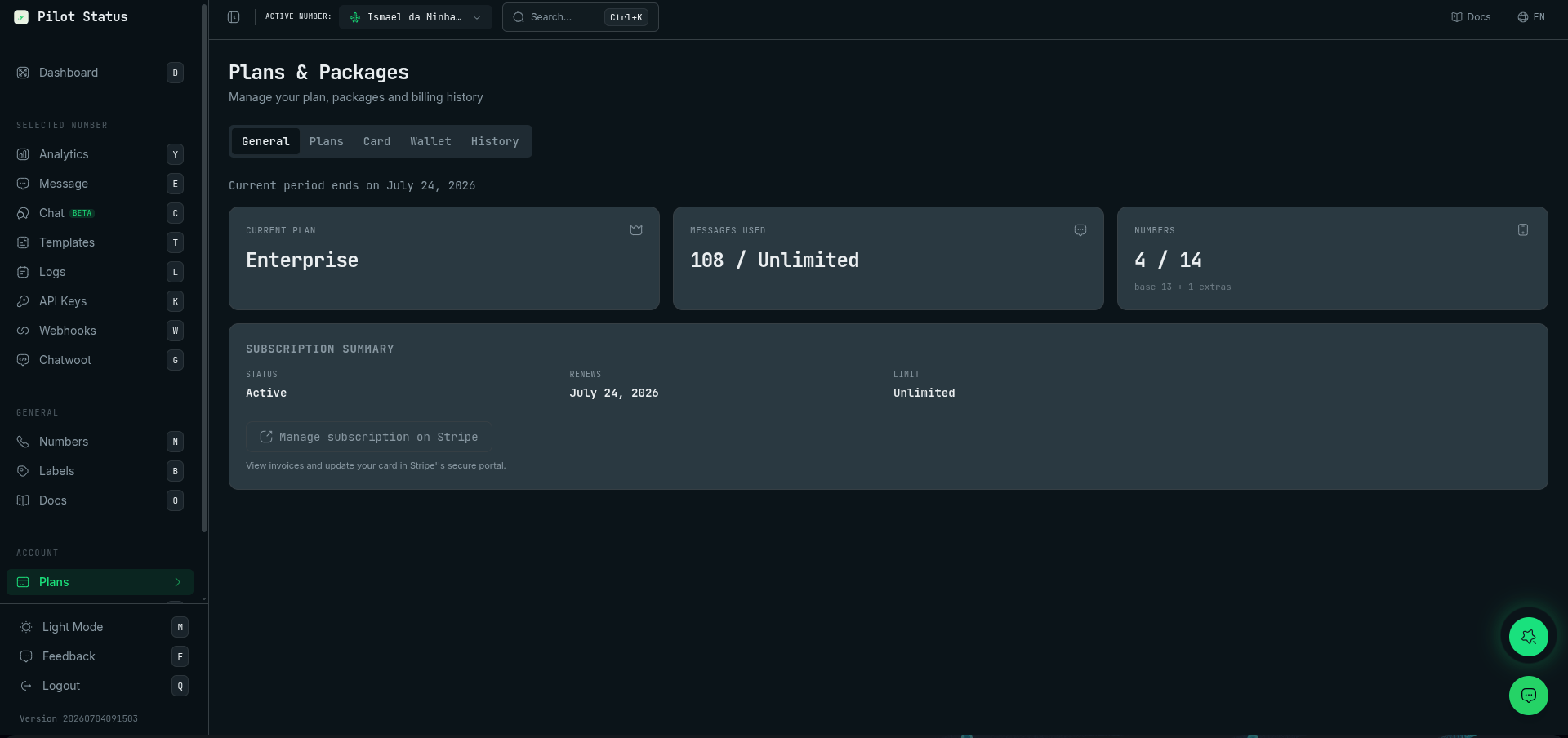
Plans & Packages — the General tab.
General
Notices at the top
- Billing suspended — sending is paused. The text says why and since when:
- the subscription charge was declined → Pay invoice (opens the Stripe portal; Owner only);
- insufficient funds → Add credits (goes to the Wallet tab) and, when there is no saved card yet, Add card — saving a card also settles the open cycle (both Owner only);
- resuming depends on support → no button, only Support needed, and the text asks you to mention the cycle ID it shows.
- Payment overdue — the last subscription charge was declined but sending has not stopped yet. It says the date by which to pay the open invoice, with Pay invoice (Owner only).
- Current period ends on … — the end of the current billing period.
422 BILLING_SUSPENDED — see Plans → Billing modes.
Cards
- Current Plan: Free, Starter, Basic, Premium or Enterprise; other plans show their code, such as
ON_DEMAND,PAY_AS_YOU_GOorCUSTOM. - Messages Used — messages used / the plan’s limit, or Limit exceeded.
- Usage — Free plan only: the percentage of the message cap, with a bar.
- Numbers — numbers connected / numbers allowed, with base … + … extras when you have extra numbers. On Pay As You Go: … billable number(s).
Billing cycle
Paid plans only. Two columns:- Current cycle — start → end dates, Capacity: … number(s) (or the billable numbers on Pay As You Go) and, on On Demand, Current cycle amount.
- Next cycle — dates, Capacity kept: … or Capacity drops from … to … number(s) and, on On Demand and Pay As You Go, Next cycle amount.
- Reduce to [number] paid no. → Schedule reduction. The new capacity only takes effect, and is only billed, from the next cycle; you keep the current one until then. You cannot go below the numbers you have connected (You have more connected numbers than that target. Disconnect numbers before reducing.).
- With a reduction scheduled, Cancel reduction keeps the current capacity for the next cycle.
- The tab reminds you: Your paid capacity is a 30-day entitlement: deleting a number does not reduce it. On Pay As You Go it says instead: On Pay As You Go the renewal bills every number that has been connected and has not been deleted, even if it is disconnected now. To pay less, delete the number: disconnecting is not enough.
Subscription Summary
Status (Active, Payment overdue or Cancelled), Renews (date) and Limit (messages).- Manage subscription on Stripe — shown when the plan is paid by card through Stripe, with View invoices and update your card in Stripe’s secure portal. It takes you to Stripe’s secure portal (in the same tab), where you see the Stripe invoices and update the card used by the subscription. Owner only: an Admin does not see this button.
- Cancel Plan (Owner, and only for a plan paid by card through Stripe; a plan paid by Pix or from the wallet has no Cancel Plan) — opens the Cancel Plan dialog: Your plan will remain active until the end of the billing period. It will then be migrated to FREE. and You can reactivate at any time before the period ends. Buttons: Confirm Cancellation and Back. After cancelling, the tab shows Cancelled — valid until … and Reactivate Plan.
Plans
Owner only. A Monthly / Annual switch (annual shows -20%), the line Numbers: … / …, and one card per plan (Free, Starter, Basic (marked Popular), Premium and Enterprise) with the price, how many numbers, how many messages and the features. Prices: Plans. The button on each card depends on your situation:- Upgrade plan — The prorated difference is charged now to your card on file and the new plan takes effect immediately. → Confirm / Back.
- Downgrade plan — The change takes effect at the end of the current period (…); you keep your current plan until then. No refund. It also warns: If you have more connected numbers than the chosen plan allows, disconnect them before continuing. → Confirm / Back. The confirmation says Downgrade scheduled for ….
PIX Payment dialog
Shows what you are paying for, the amount, Expires at (date and time), the QR code and Copy PIX code (the Pix copy-and-paste code). After paying in your bank app, click Check payment: Payment confirmed! or Payment is still pending. Close dismisses it. A plan paid by Pix renews from the wallet each cycle — see Billing modes. Need more numbers? at the bottom has Talk to our team (WhatsApp), for more than 13 numbers or a custom plan.Card
Owner only. Saved card — Save a card to buy extra numbers via the API with automatic billing (On Demand). The same card also pays automatic charges when the wallet does not cover them.- With a card: the brand and •••• last 4 digits, and Remove card. Removal happens at once, with no confirmation dialog. It is refused while the card is needed: Cancel On Demand before removing the card. or Disable auto-recharge before removing the card.
- Without a card: Add card opens a Stripe page to save one; you come back to
/planswhen done. - Using the card of workspace … as a backup — the workspace has no card of its own, but charges fall back to another workspace’s card (a reseller’s shared card). It shows that card’s brand and last 4 digits, read only. A card of your own takes precedence over the backup card.
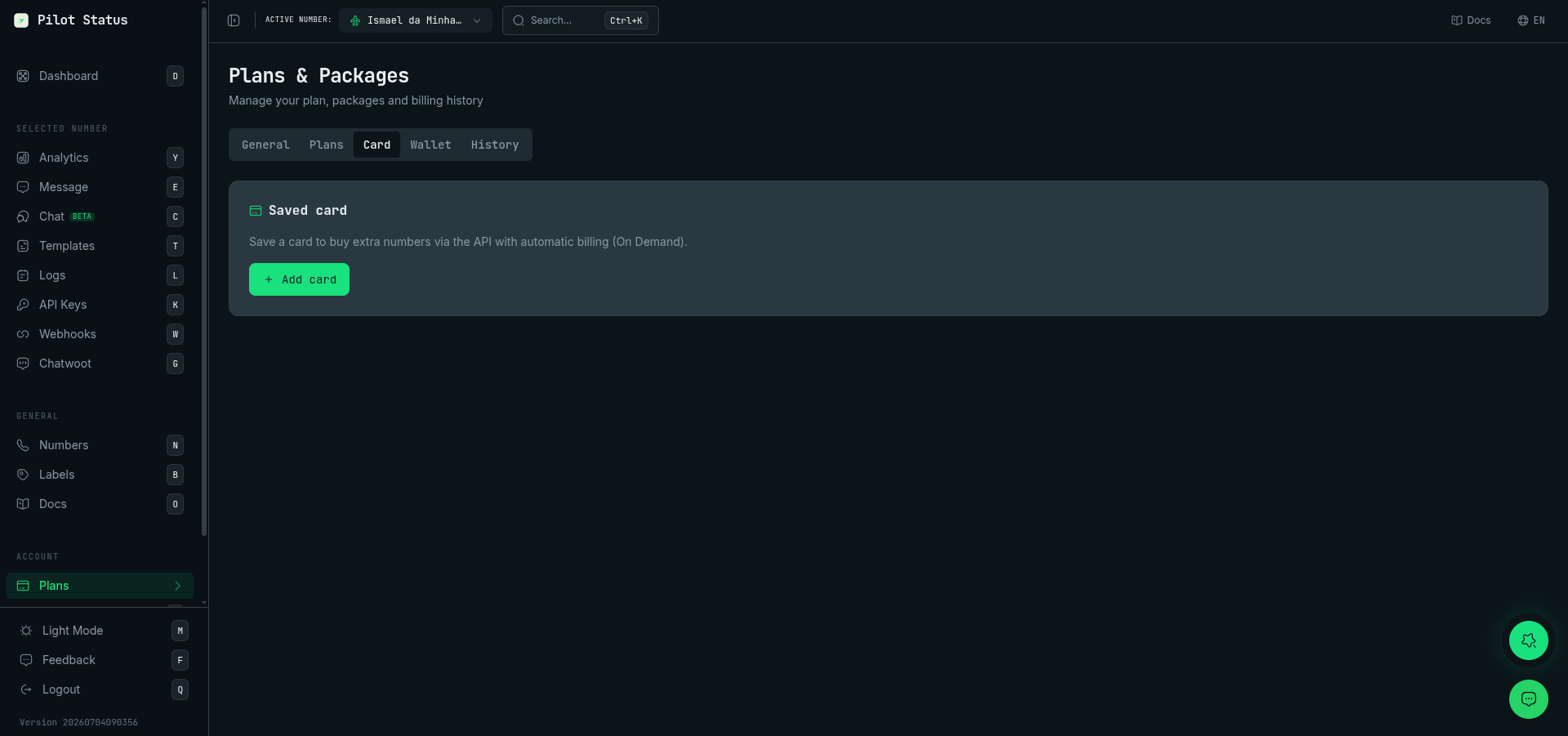
The Card tab with a saved card.
Wallet
The prepaid wallet: Wallet balance (in the wallet’s currency) and the Statement — Recent wallet transactions., with Type (Top-up, Debit, Credit, Refund, Adjustment, Purchase and Monthly fee — purchases and monthly fees come from plans, extra numbers and phone lines), Amount, Balance and Date. The All, WhatsApp and Phone lines buttons filter by product. Add credits (Owner) opens the Add credits dialog:- Amount (in the wallet currency).
- Payment method — PIX (BRL wallets only; otherwise Pix is available only for BRL wallets.) or Card. With a saved card, choose Use card •••• 1234 (charged at once, no extra page: Credits added.) or Other card (opens Stripe Checkout).
- Continue.
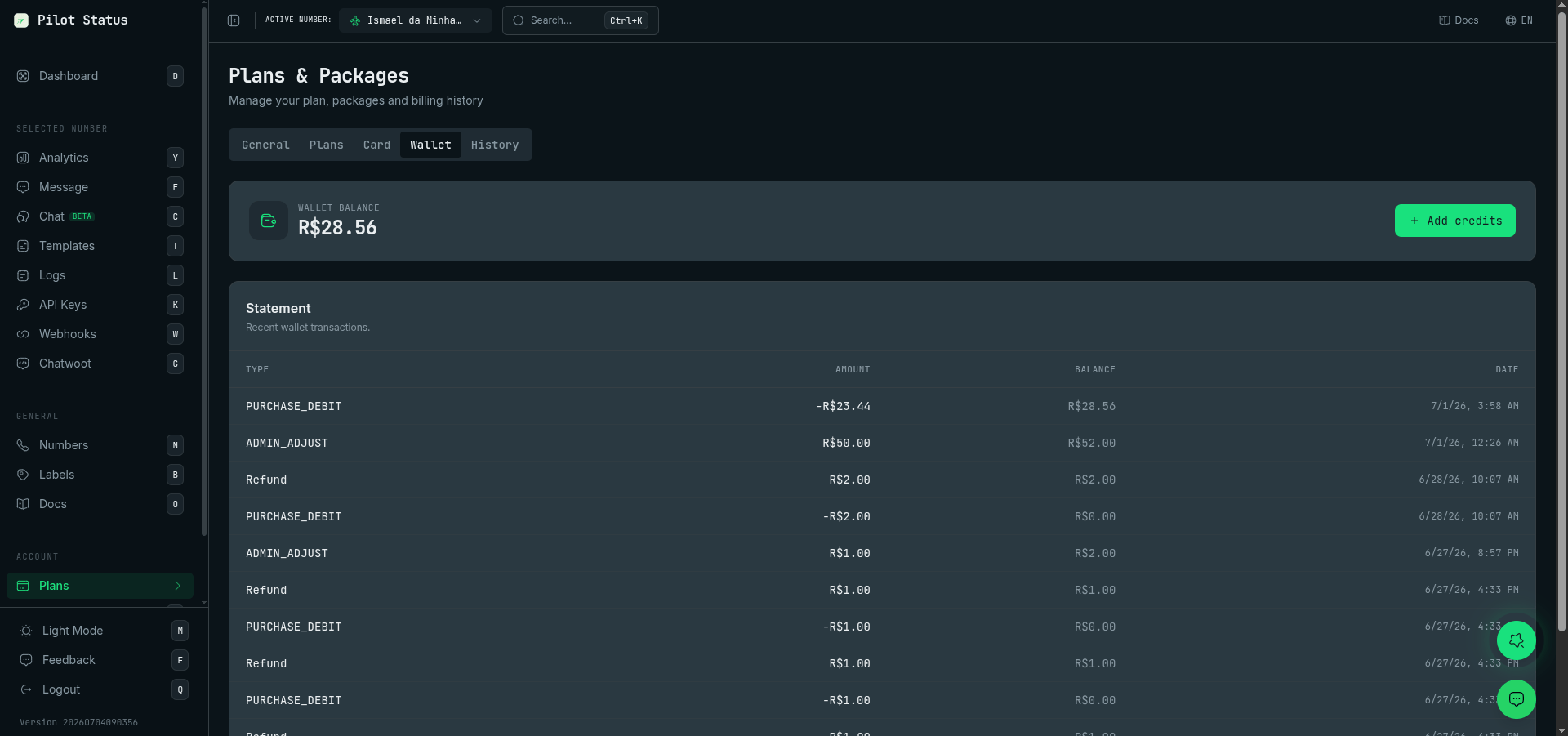
The Wallet tab — balance, Add credits and the statement.
Finance
What the account spent, what the Phone Lines will charge next, who the receipts are issued to, and the documents of every paid charge. Four sections:- Consolidated spend — everything charged, per product and per month (in the account time zone): Plan subscription, Monthly fee from the wallet (plan and extra numbers), Extra numbers, Phone lines, Message packages. Period: 2 months, 6 months or 12 months; the two latest months are cards (Current month, Previous month) and Earlier months is a table. It also shows Wallet (Top-ups, Spent on products, Refunded to the wallet), not added to the total, and Returned to you (Refunds (card or Pix), Chargebacks lost at the bank). Meta message costs are not here: Meta bills them directly (See Meta prices).
- Phone line charges — wallet balance, coverage of the next renewals and the charge history of the lines. Described in Phone lines in the dashboard.
- Billing details — who the receipts and payment proofs are issued to: Country (Brazil or Another country with Country code (2 letters)), Document type, CPF or CNPJ, Full name or company name, Billing e-mail, Postal code (CEP) (in Brazil the address is looked up from the CEP), Street address, Number, Address line 2 (optional), District (optional), City, State. When no billing details are saved yet, the Owner sees the form directly and, if there is one, Use the Phone Lines verification details fills it from the line holder verification. Once saved, Edit → Save details (Owner). Saving also updates the name, e-mail, address and CPF/CNPJ on the Stripe customer, so upcoming card invoices carry them. Updated on … shows the last change.
- Receipts and invoices — one row per paid charge, with Load more. Payment proof downloads an HTML file you can open and print or save as PDF; it works for any payment method and is not a tax invoice (nota fiscal). Stripe invoice/receipt opens Stripe’s document; the button only shows when a card was involved and Stripe has a document (if Stripe has none after all: This charge has no Stripe document. Use the payment proof.).
For an Admin, the CPF/CNPJ and street address in Billing details — and in the payment proofs that Admin downloads — are masked. Only the Owner sees them in full.
History
Billing Events — the timeline of everything that happened to the account’s billing, newest first, with Load more. Each event shows its name, amount, payment method and date. Examples: Checkout started, Checkout completed, Checkout canceled, Subscription activated, Subscription renewed, Subscription canceled, Plan change proration paid, Extra numbers purchased, Extra numbers removed, Number reduction scheduled, Number reduction canceled, Credits added, Top-up not completed, Card saved, Card removed, Backup card linked, Backup card unlinked, Monthly charge paid, Monthly charge outstanding, Account suspended for non-payment, Account reactivated, Price updated, Payment disputed at the bank, Refunded at the PSP, plus others such as the end of a subscription, custom plans, packages and auto-recharge, and the phone line events (Line purchased, Line monthly fee paid, Line charge failed, Line suspended for non-payment, Line reactivated, Line canceled and more). More in Plans → Billing history.Values that are shown only once
- The Pix copy-and-paste code and QR code (plan payment and wallet top-up) are shown only in their dialog. Closing it loses them; start a new payment for a new code. Through the API,
POST /v1/billing/checkoutreturns the code in its response andGET /v1/billing/topups/{id}tells you if it was paid.
Do it via API / MCP
Dashboard only (no
/v1 endpoint or MCP tool): buying a plan by card or Pix, upgrade, downgrade, cancel and reactivate the plan, the Stripe portal, removing the saved card, the wallet balance and statement, Finance (spend, billing details, receipts and payment proofs) and History.
Money-moving endpoints need an Owner credential (account key or OAuth/MCP token); see Wallet and card via API.